How to Use the GTM Variable Library
Getting Started
Section titled “Getting Started”This guide walks you through setting up the ggLowCodeGTMKit variables in Google Tag Manager, demonstrating how to install them and how to leverage their powerful chaining capabilities.
You will learn how to import the variables into your GTM container and how to use them in different scenarios:
- Scenario 1: Cleaning a price extracted from the DOM and transforming it into a number.
- Scenario 2: Taking a list of 3 items and joining their IDs into a single string.
- Scenario 3: Calculating the total value of 3 items in a shopping cart.
After these scenarios, you should feel confident using the variables in your own projects, with a strong understanding of both Direct Mode and Apply Mode.
Prerequisites
Section titled “Prerequisites”Before we begin, download the How-To Examples container that includes all the variables and mock data used in this guide:
📦 Download ggLowCodeGTMKit_HowTo_Examples.json
This container includes mock data sources and a selection of pre-configured variables so you can follow along step-by-step.
Step 1: Installation in GTM
Section titled “Step 1: Installation in GTM”To add the variables to your GTM container, we will use the built-in import feature.
-
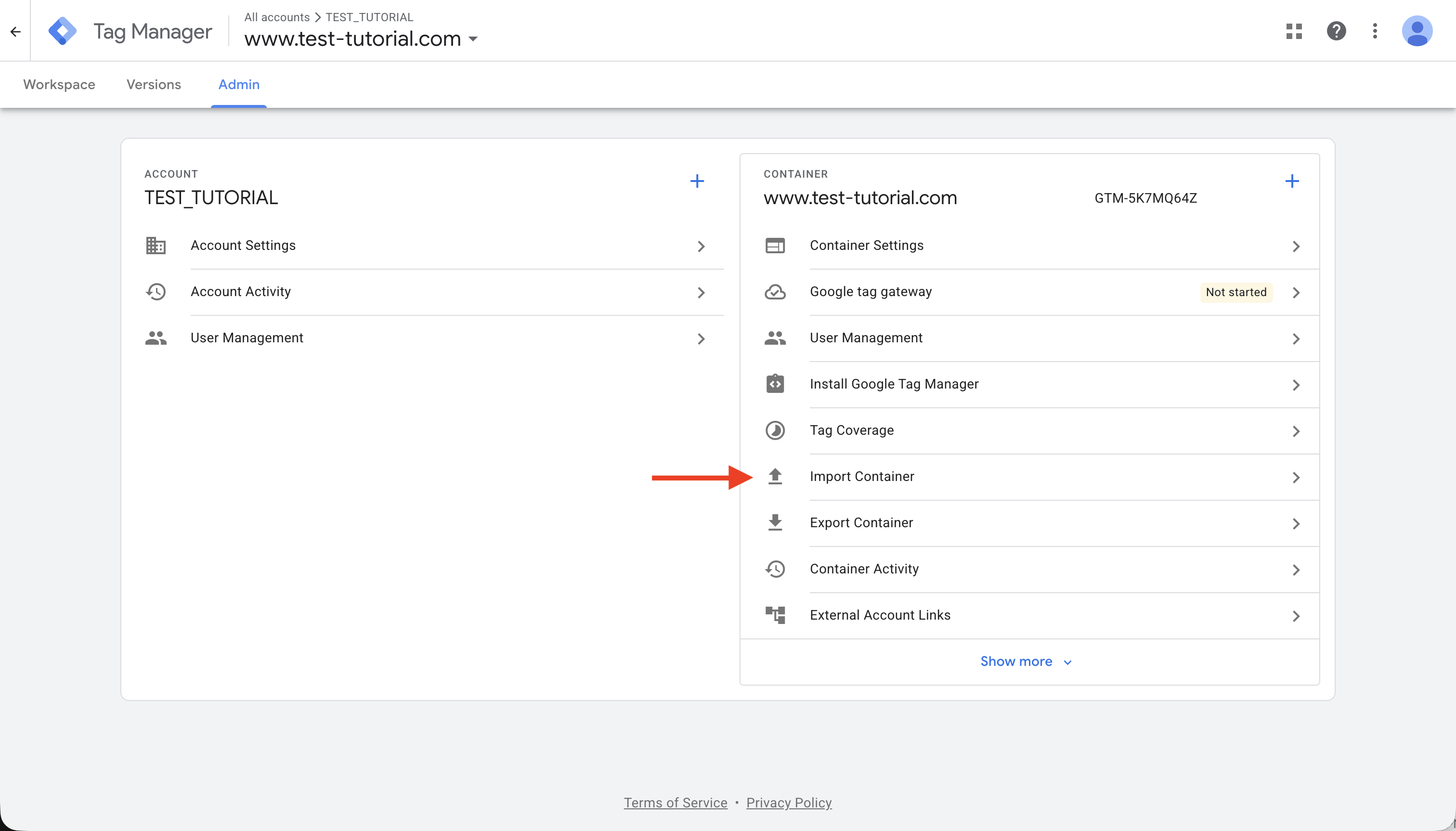
Navigate to Admin in your Google Tag Manager workspace. 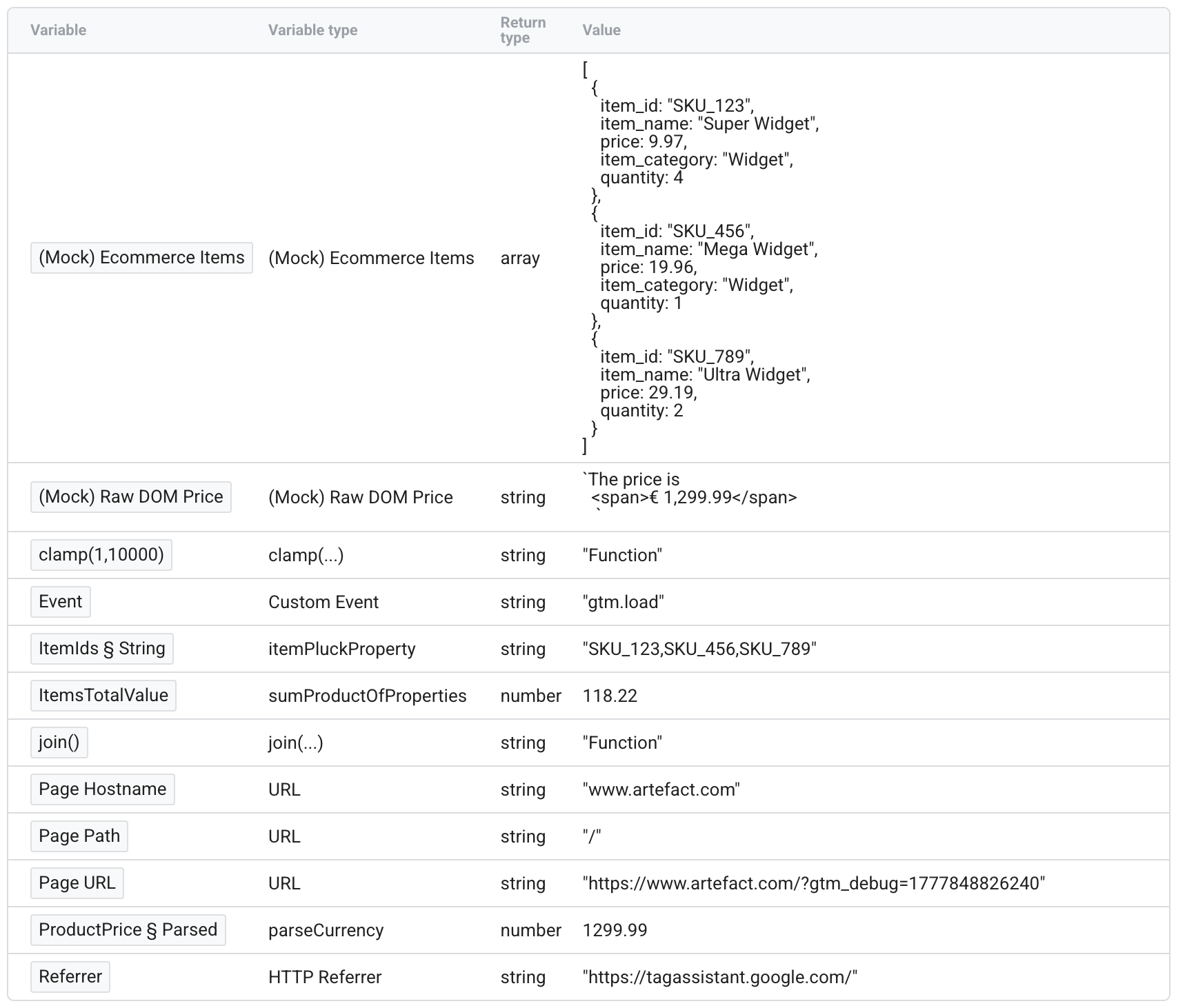
-
In the Container column, click on Import container.
-
Click Choose File and select the
ggLowCodeGTMKit_HowTo_Examples.jsonfile you downloaded earlier. Select Overwrite or Merge, then click Add to Workspace.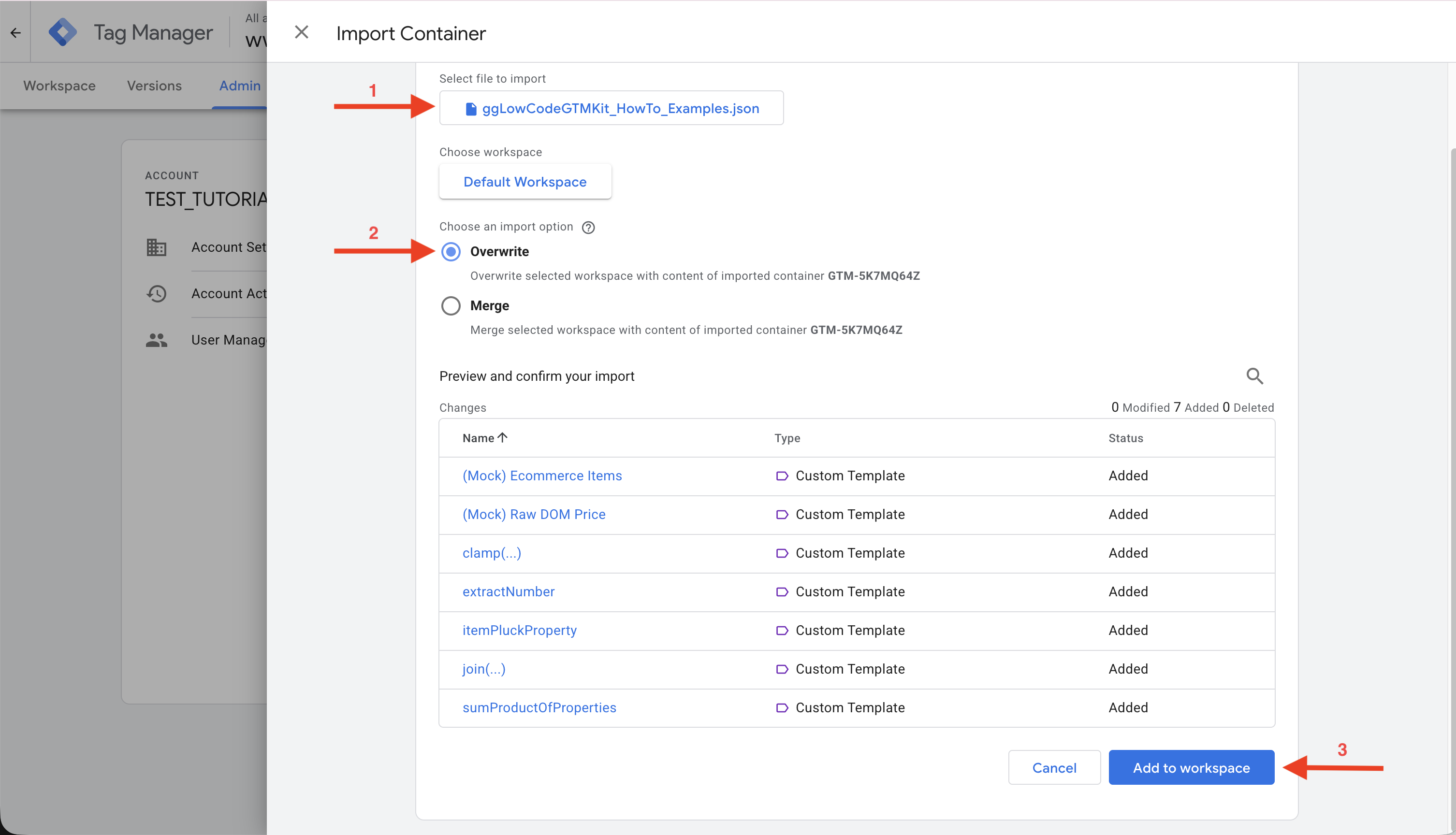
-
Go to Templates. You should see the 7 templates imported. This is where the template definitions live, but the actual variables are not created in the workspace yet.
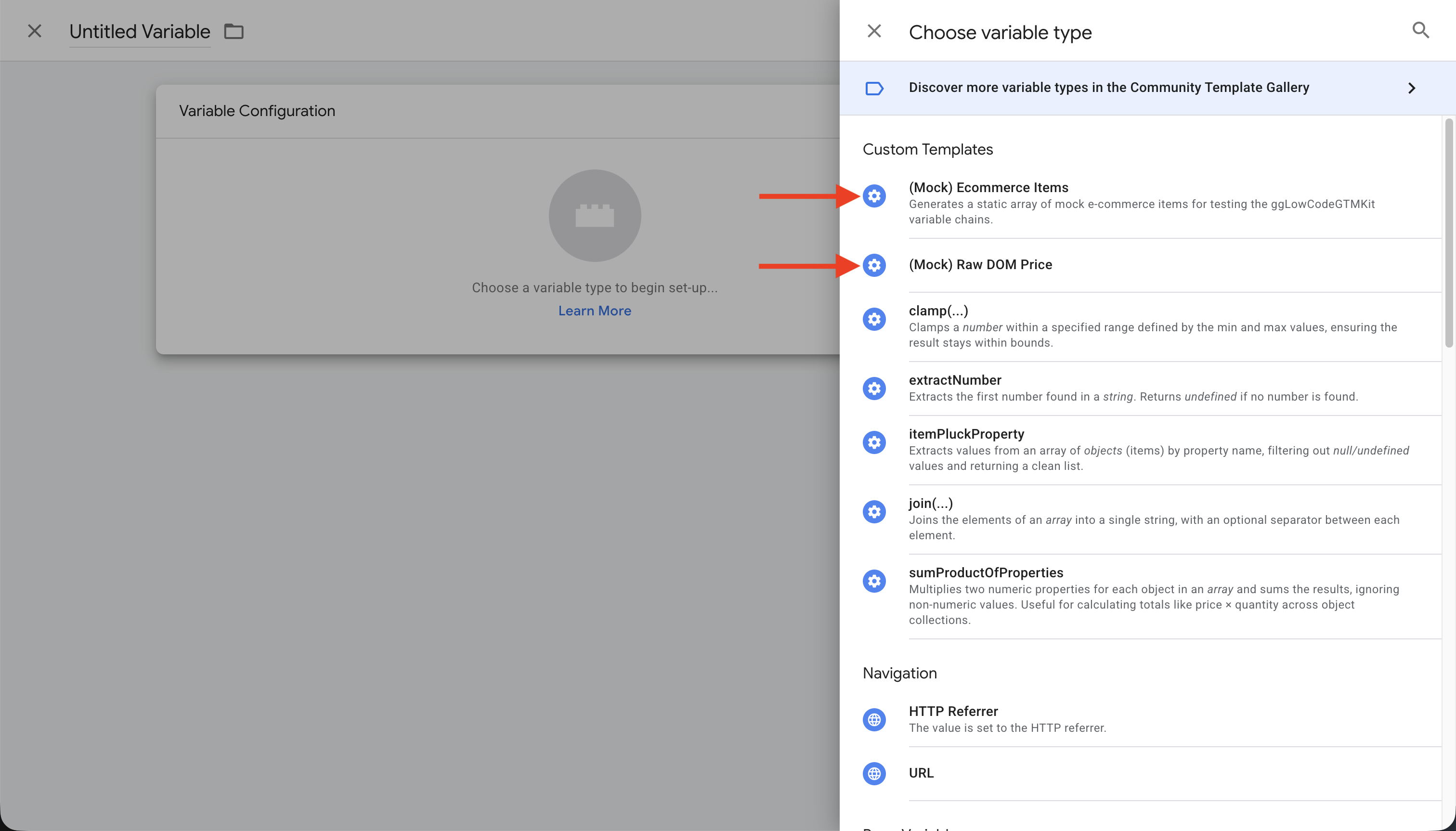
- (Mock) Ecommerce Items: Creates mock data for ecommerce items (represents an item list available in a datalayer).
- (Mock) Raw DOM Price: Simulates a dirty price value extracted from a DOM element.
- clamp(…): Library variable used to clamp a number within a specified range.
- itemPluckProperty: Library variable used to pluck a property from an array of items.
- join(…): Library variable used to join an array of strings into a single string.
- parseCurrency: Library variable used to parse a currency string into a number.
- sumProductOfProperties: Library variable used to sum the product of two properties (e.g., price × quantity) across items.
Note: Outside of the mocked variables, these library templates use two naming nomenclatures depending on how they are meant to be used. Direct Variables have no suffix, while variables designed to be chained in Apply Mode include
()or(...)as a suffix.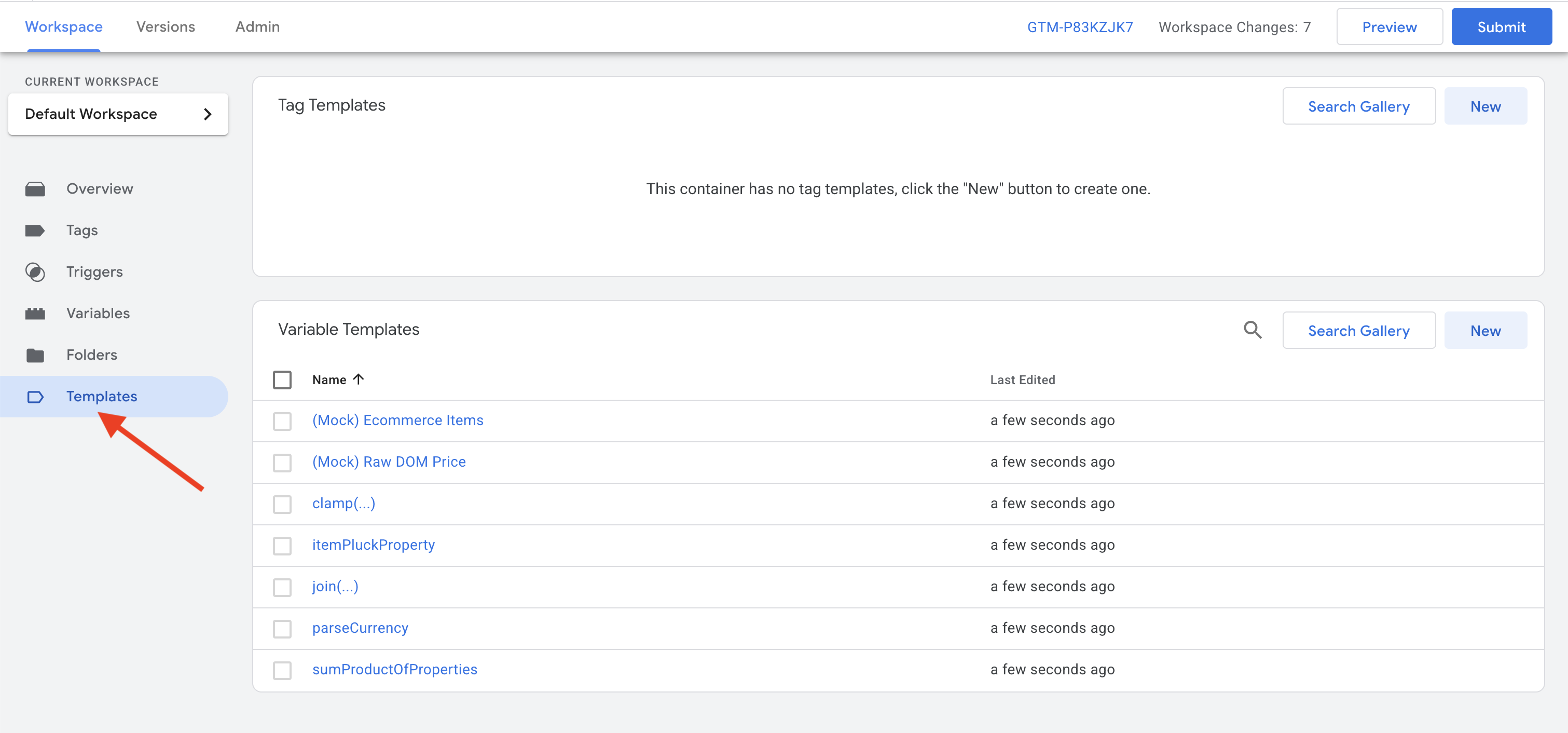
-
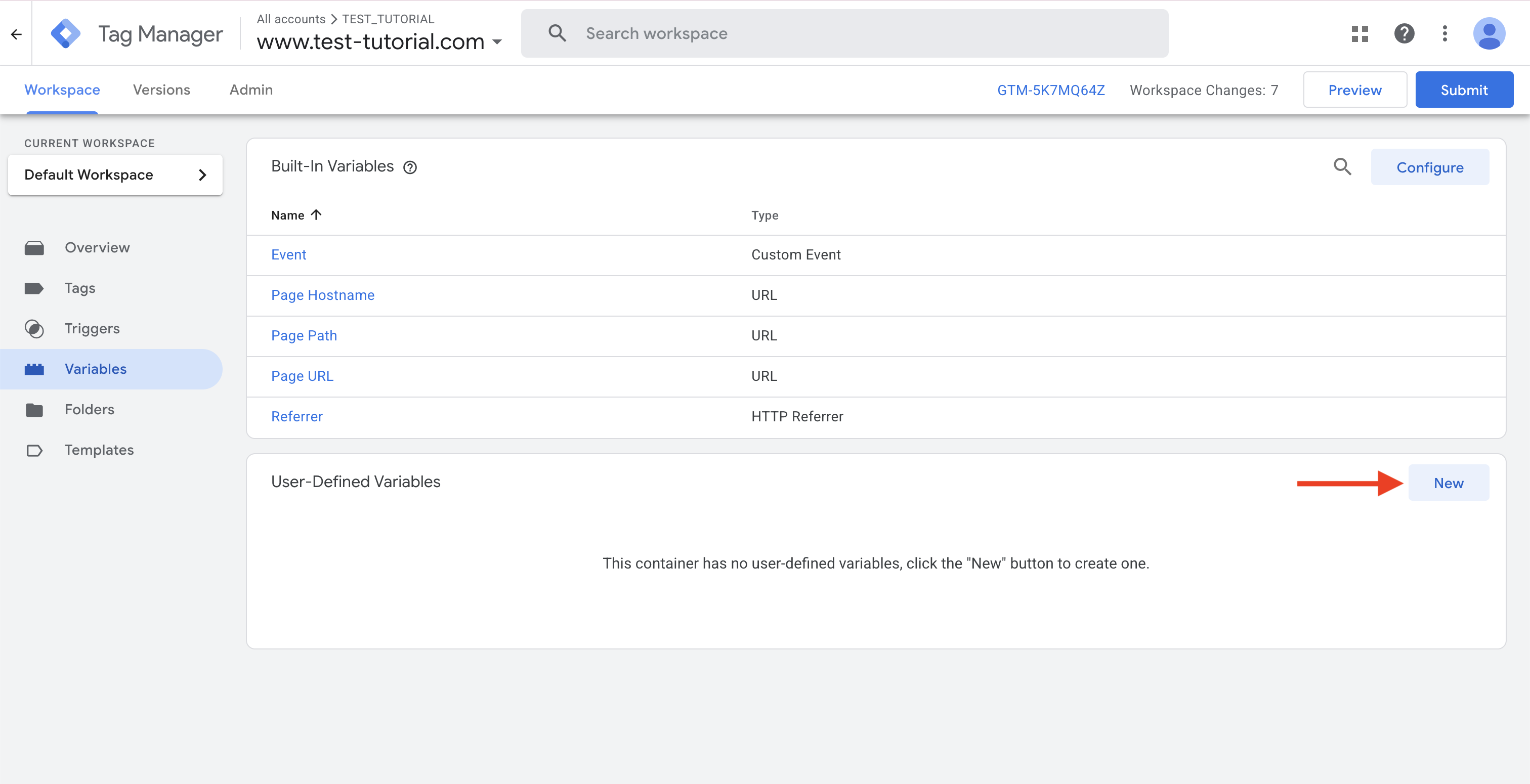
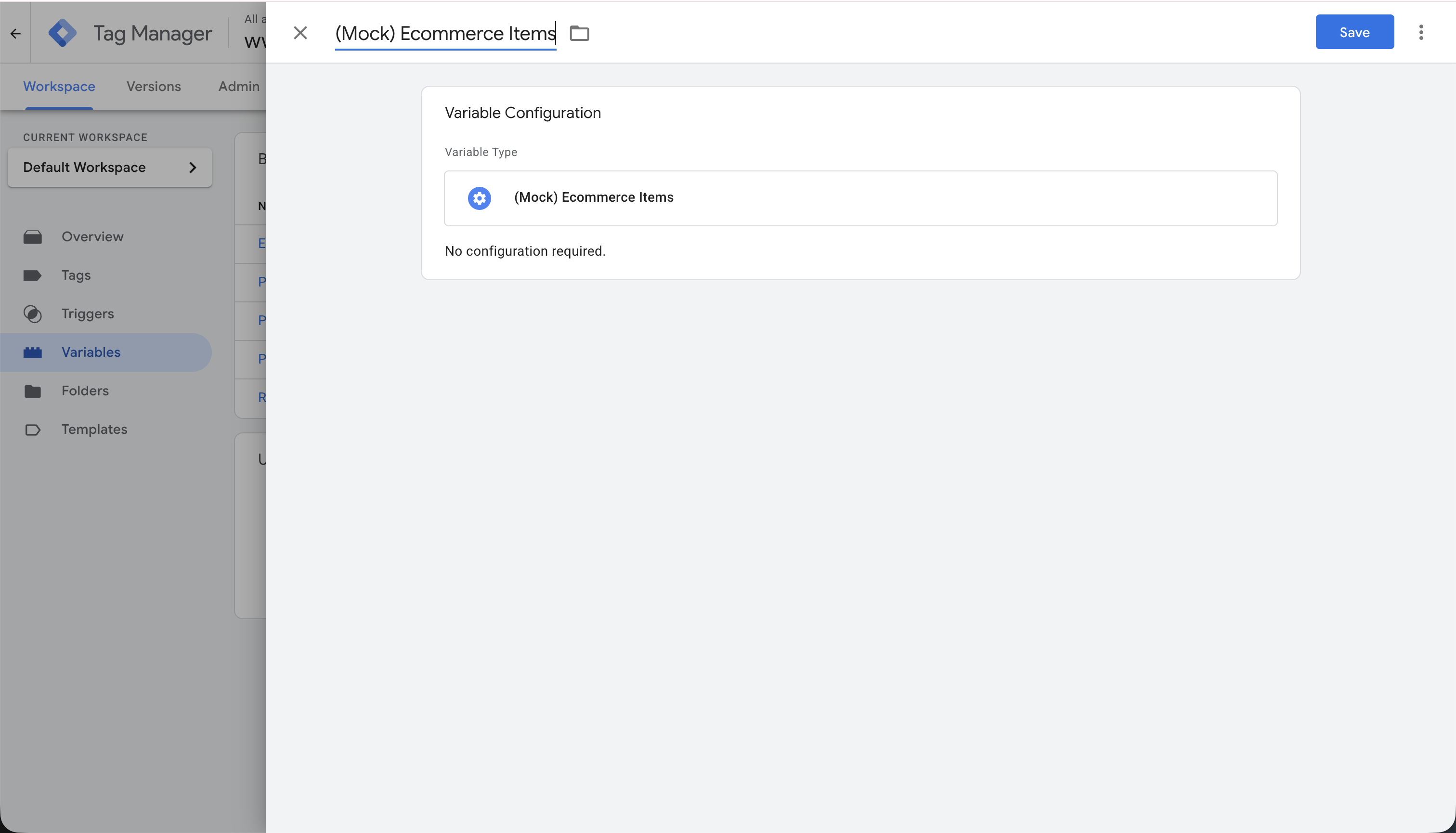
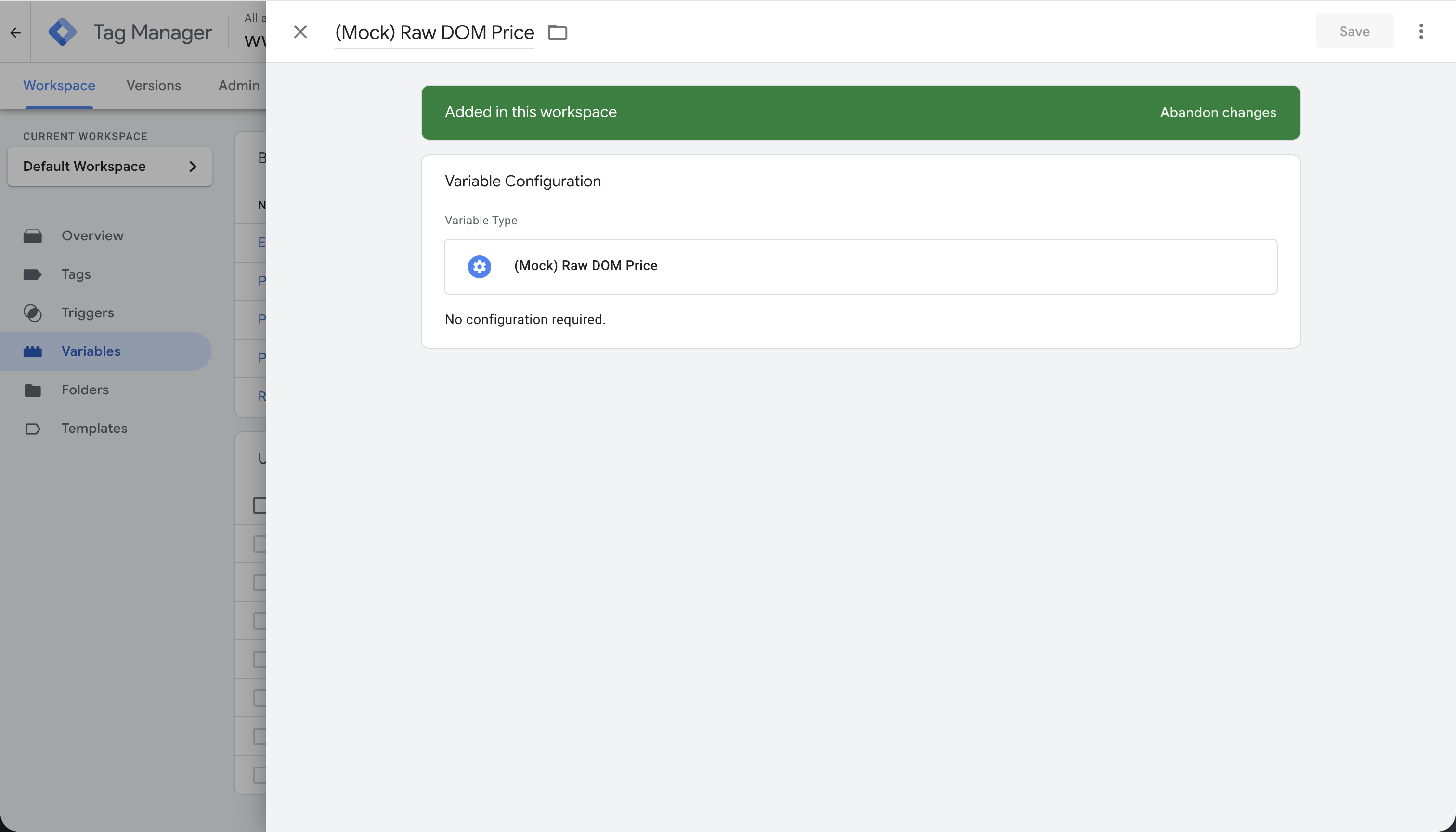
Go to Variables, then click New. Import the mock variables and name them as you wish (using the template name is a great way to begin).
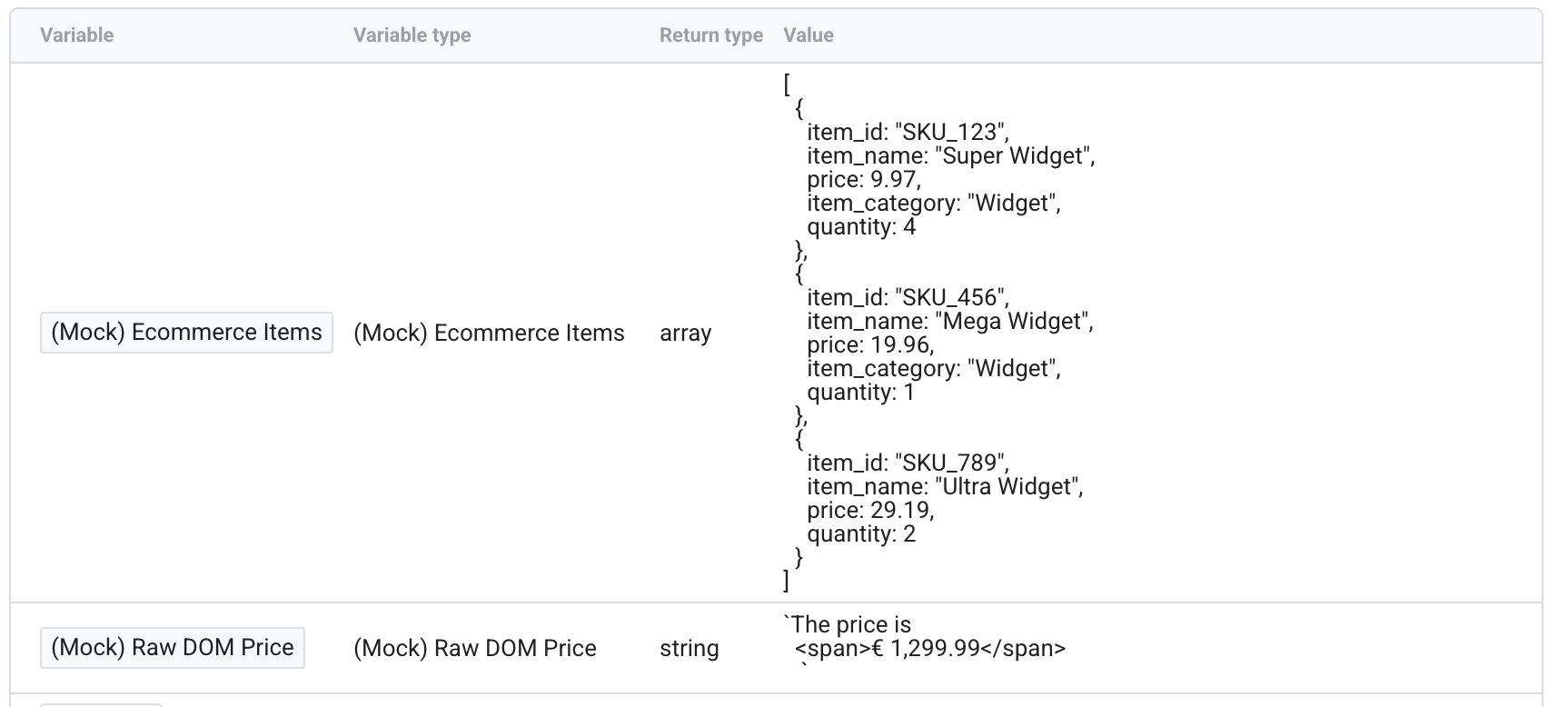
You can verify the values using Preview mode. You can launch the preview mode from this page: www.youdontknowga.com/playground/gtm by entering your GTM ID. The debugger will open in a new window allowing you to inspect the variable values in the left panel.
Step 2: Working with Standard Scenarios
Section titled “Step 2: Working with Standard Scenarios”We will work on three standard scenarios in parallel to demonstrate how to use the variables.
Scenario 1: Clean a Price
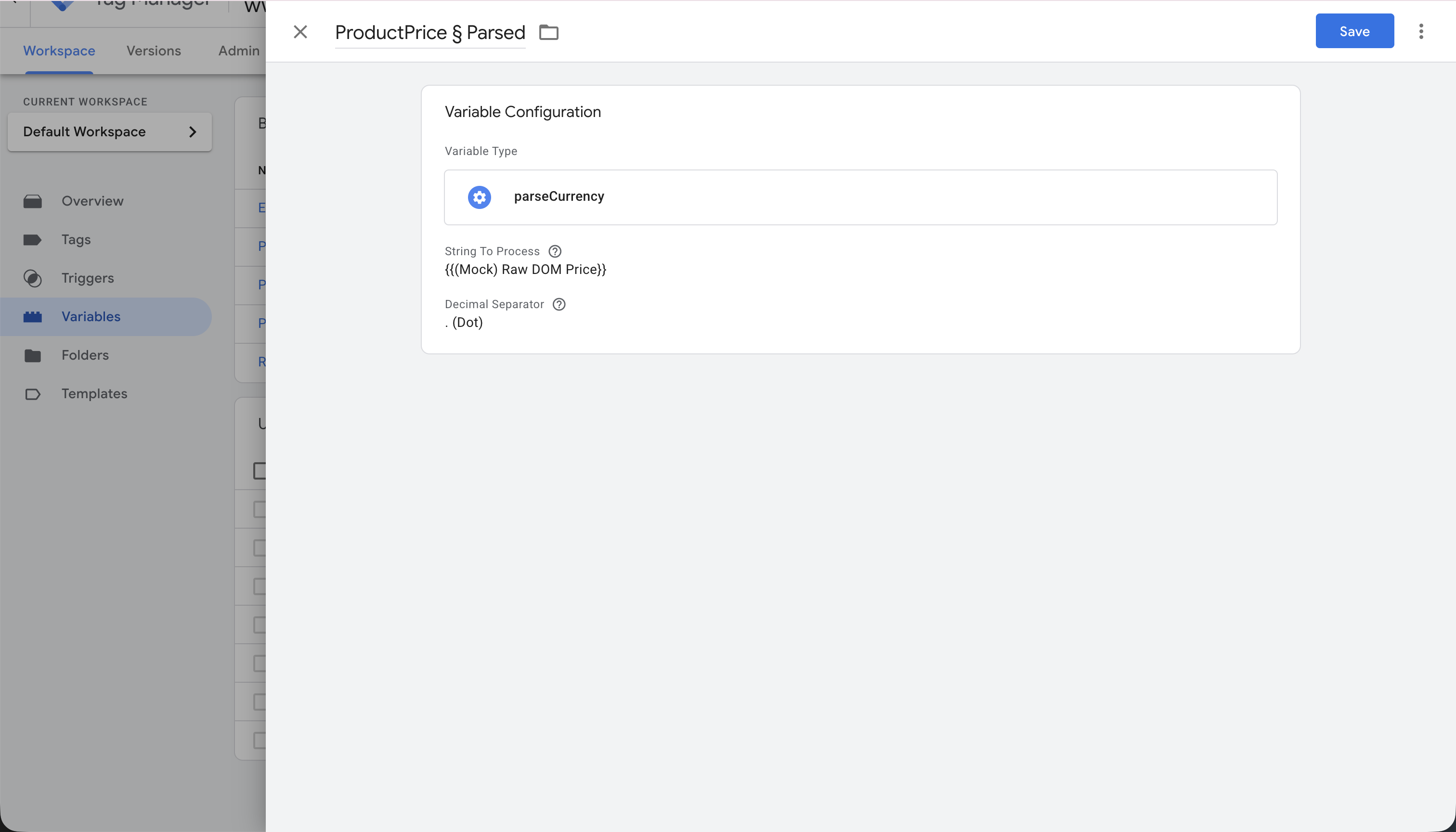
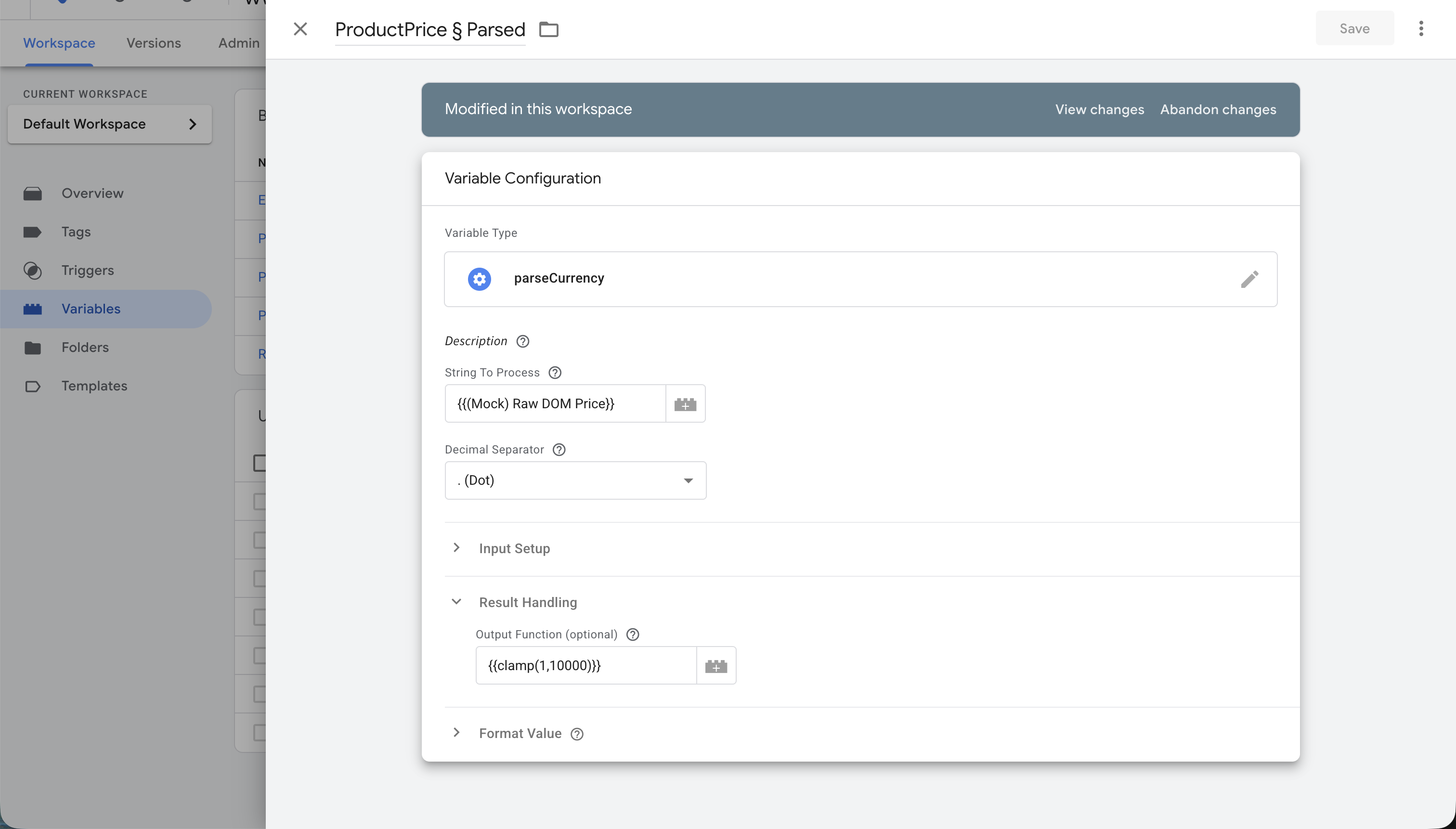
Section titled “Scenario 1: Clean a Price”Create a new variable using the parseCurrency template, passing (Mock) Raw DOM Price as the input parameter.
Proposed name: ProductPrice § Parsed
Scenario 2: Extract Item IDs
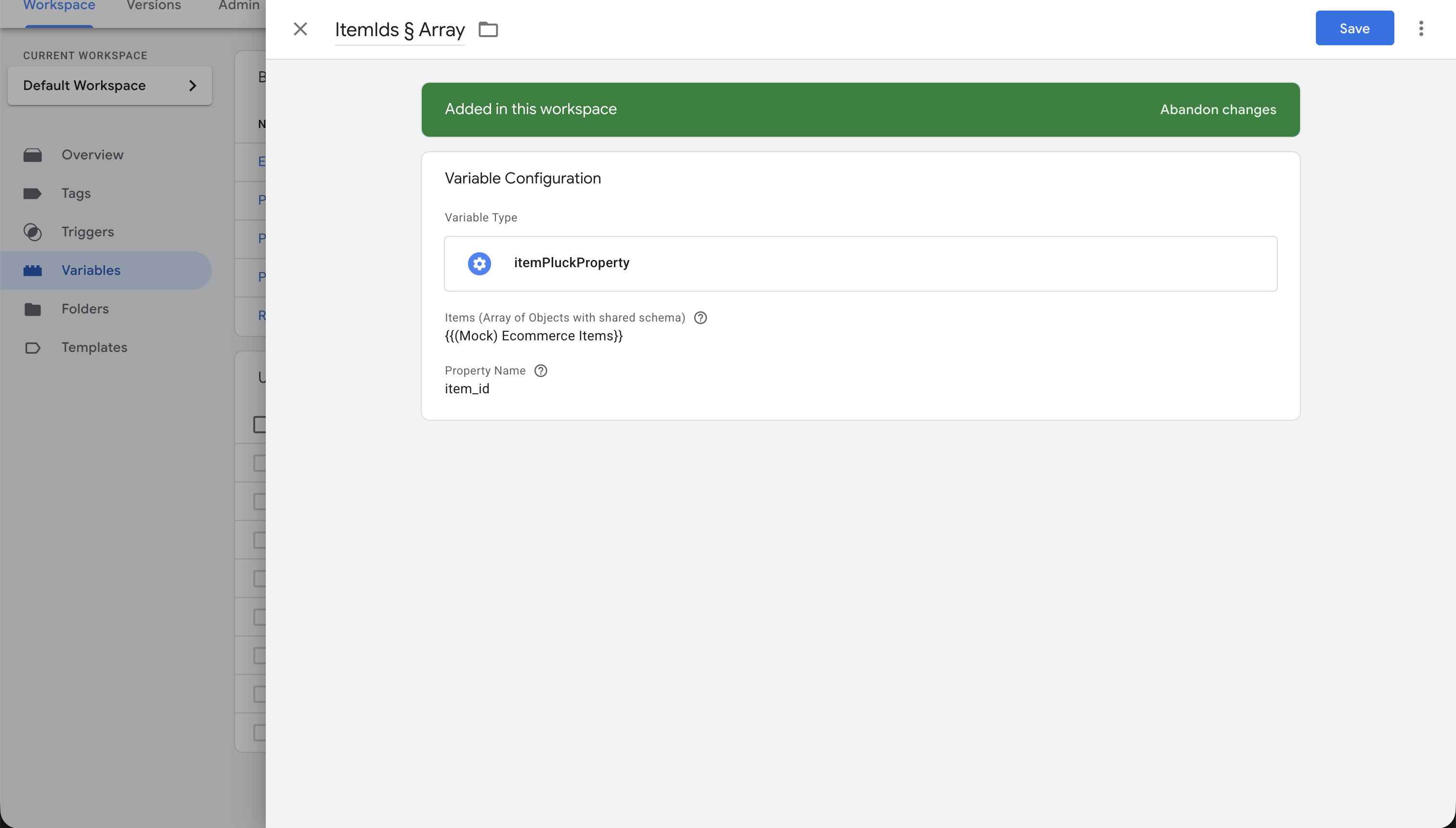
Section titled “Scenario 2: Extract Item IDs”Create a new variable using the itemPluckProperty template. Pass (Mock) Ecommerce Items as the first parameter, and type item_id as the property to pluck.
Proposed name: ItemIds § Array
Scenario 3: Calculate Cart Total
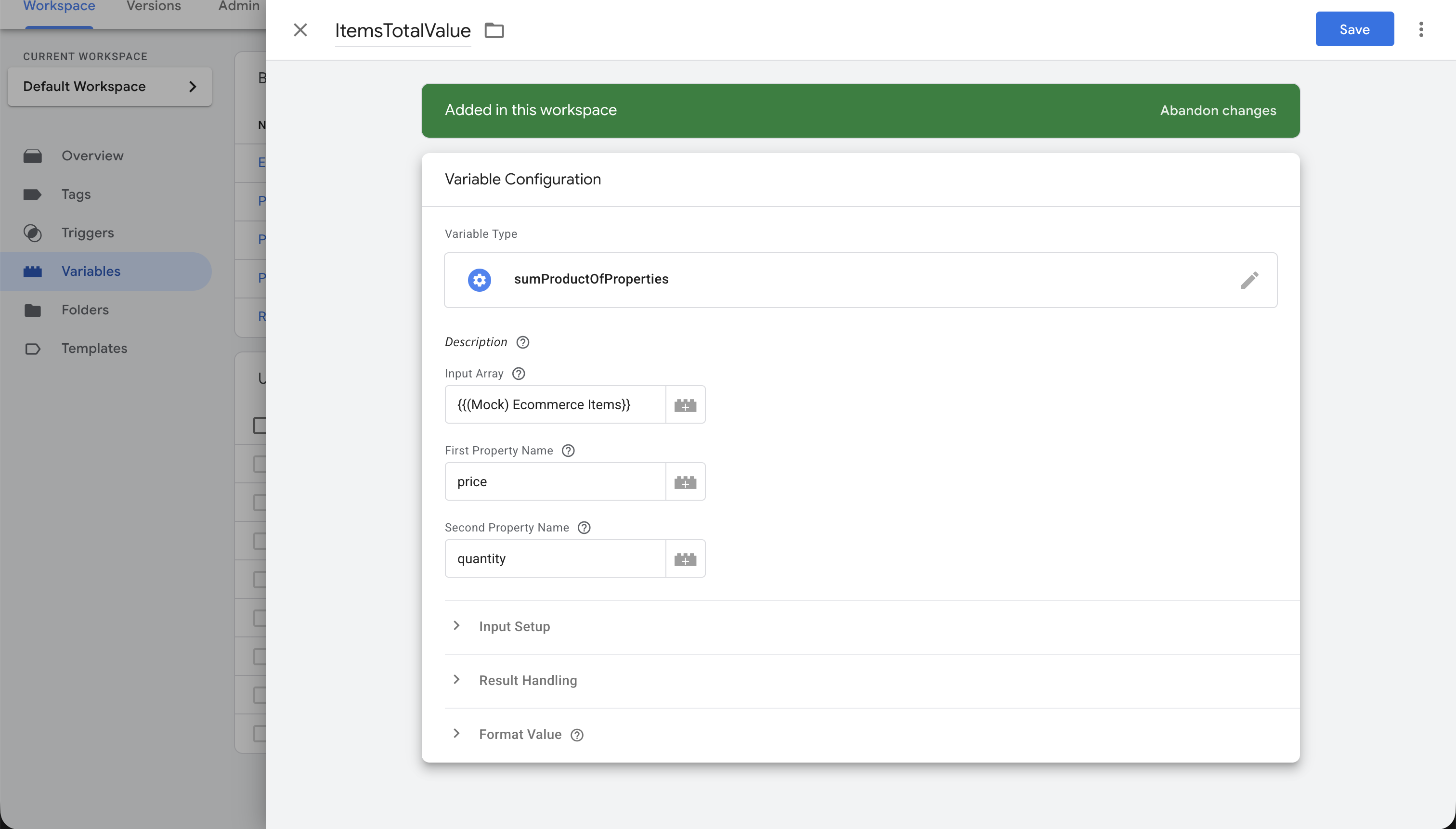
Section titled “Scenario 3: Calculate Cart Total”Create a new variable using the sumProductOfProperties template. Pass (Mock) Ecommerce Items as the first parameter, price as the second, and quantity as the third parameter.
Proposed name: ItemsTotalValue
Testing the Initial Output
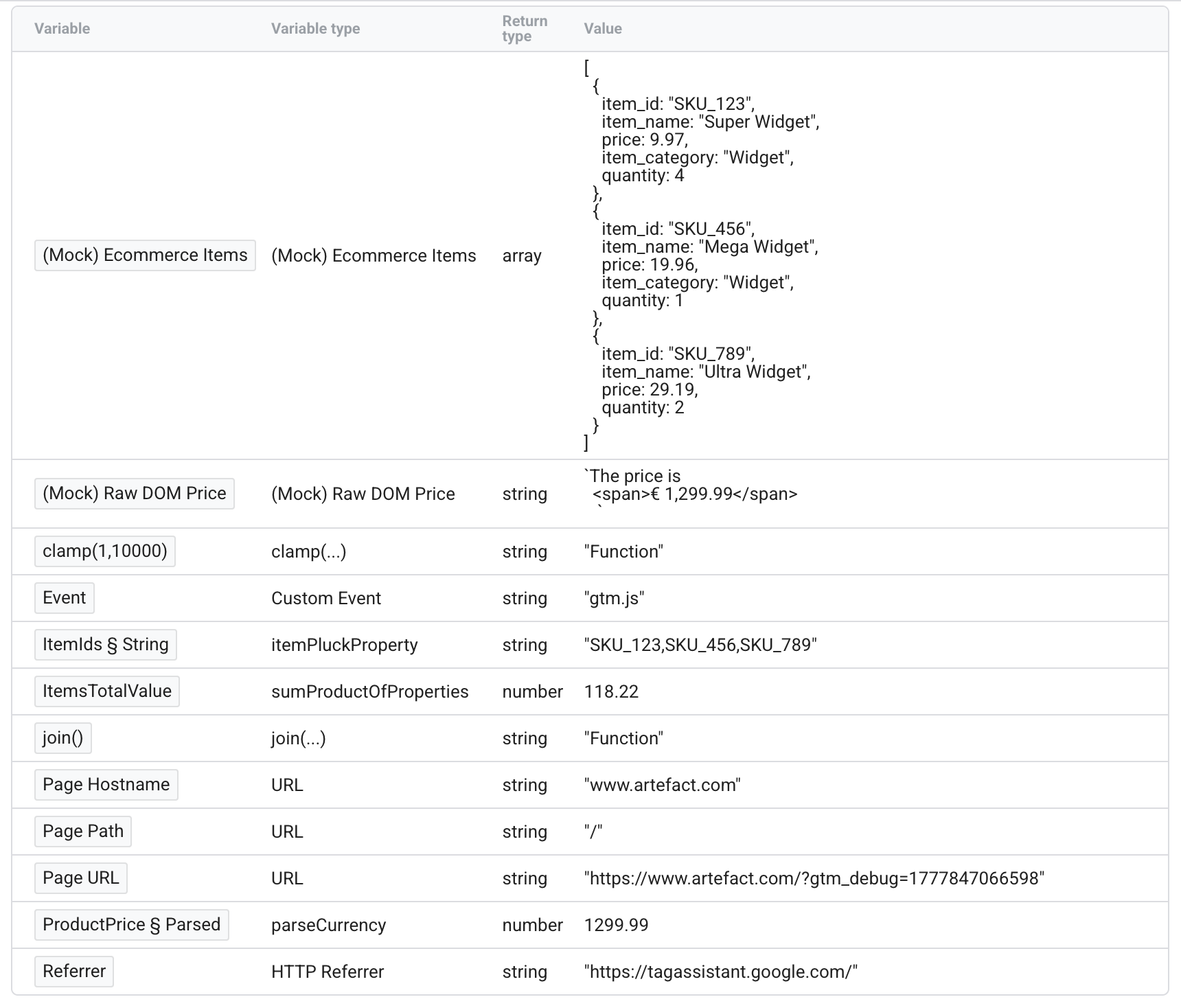
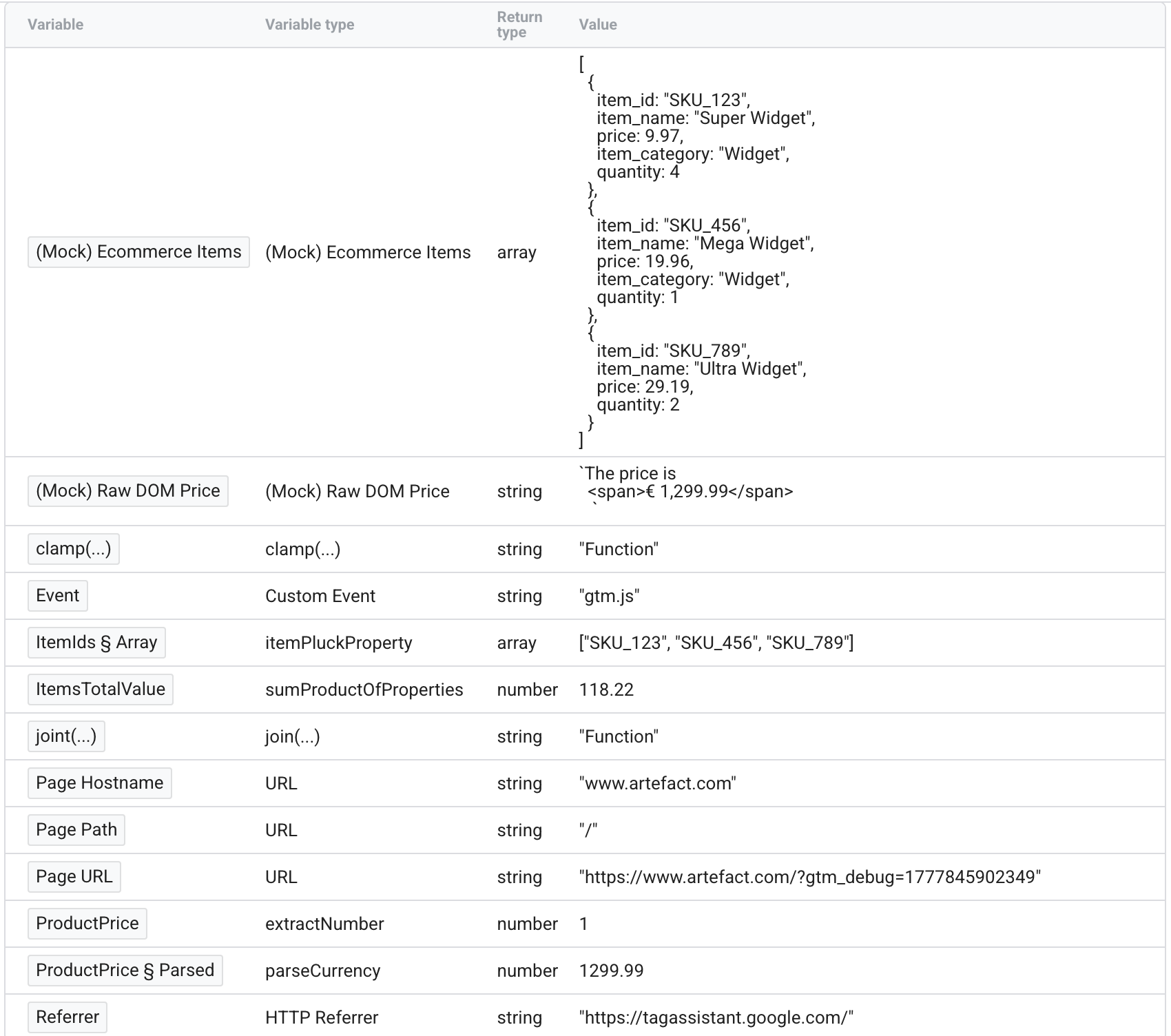
Section titled “Testing the Initial Output”Go to Preview mode to check the values of the variables. As you can see:
- The product price is “luckily” well parsed.
- The list of item IDs is well extracted, but it’s currently an Array, and we would prefer it to be a string of comma-separated values.
- The total cart value is perfectly calculated.
Step 3: Advanced Chaining with Apply Mode
Section titled “Step 3: Advanced Chaining with Apply Mode”We will now use Apply Mode to demonstrate how to chain variables together and improve the final output.
Improving Scenario 2 (Joining the Array)
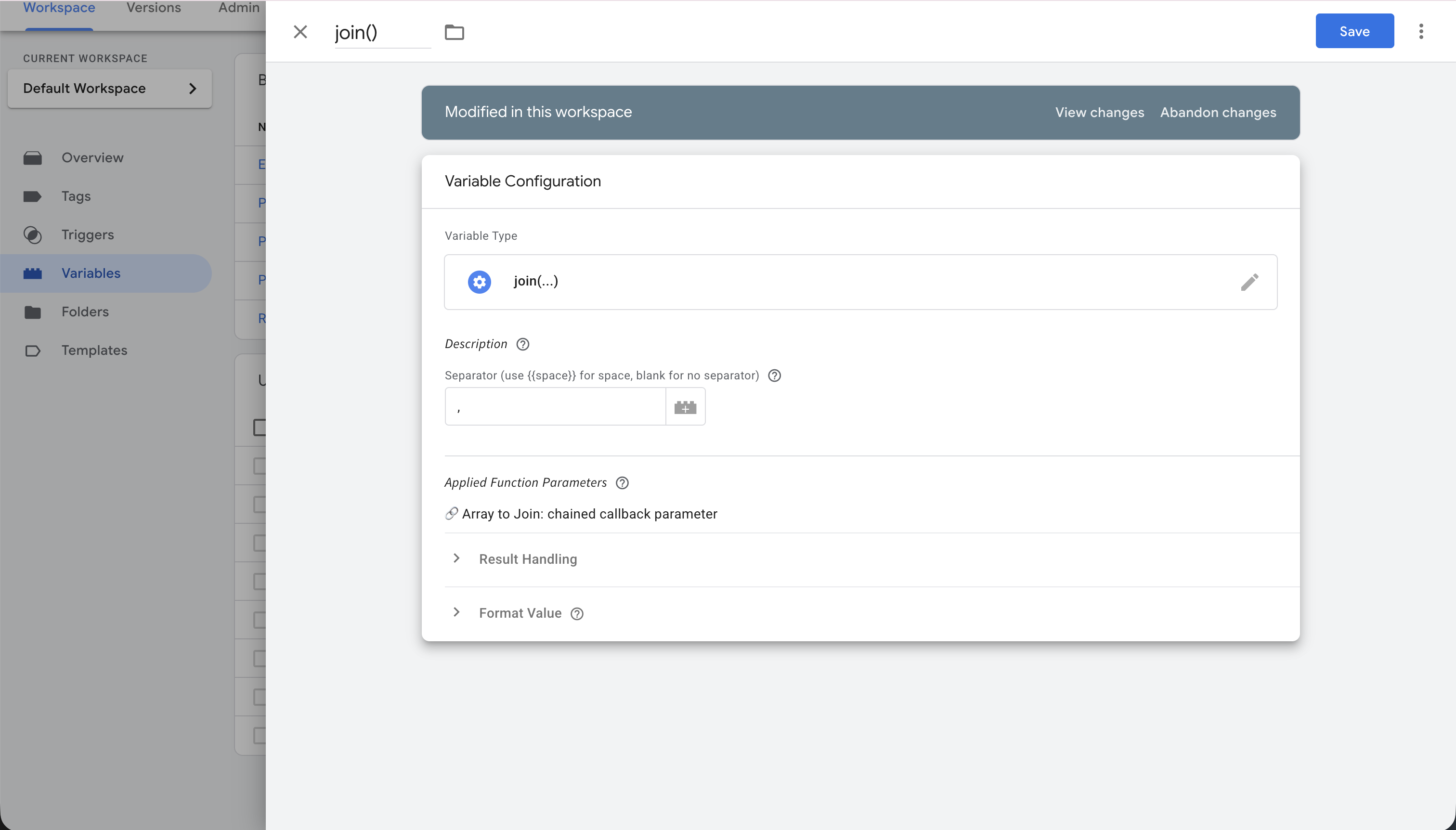
Section titled “Improving Scenario 2 (Joining the Array)”We will import a new variable using the join(...) template, and add a comma , as the separator.
Proposed name: join()
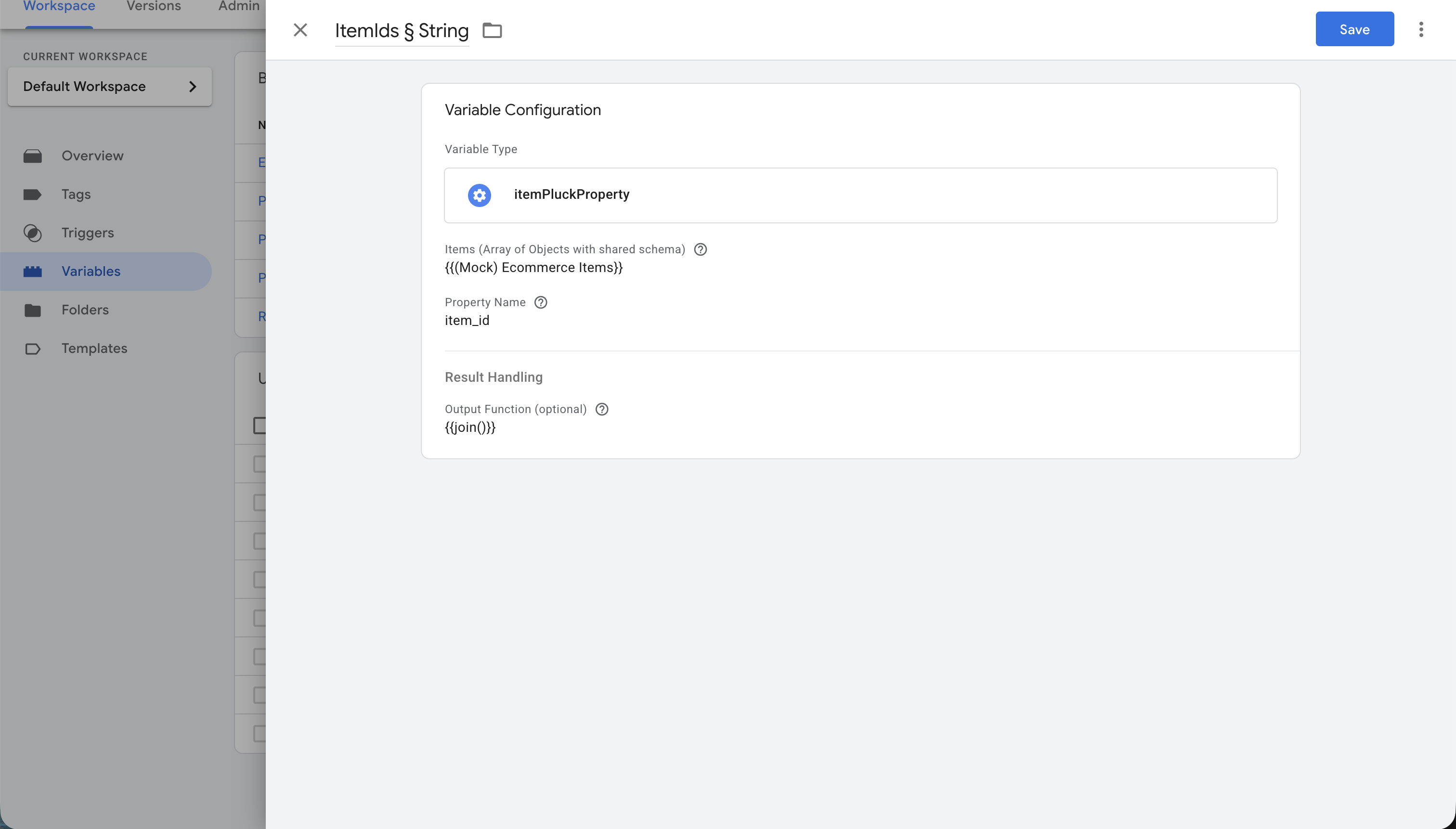
Next, open the ItemIds § Array variable you created earlier. Instead of using it directly, switch its execution mode to Apply Mode, and select your new join() variable as the result output.
Rename the variable to ItemIds § String. The join() function will now be applied automatically to the output of the array extraction! Click Save.
Improving Scenario 1 (Clamping the Price)
Section titled “Improving Scenario 1 (Clamping the Price)”We will add a safeguard to limit the risk of skewed data from our scraped DOM price, ensuring it stays within a defined minimum and maximum range.
Import the clamp(...) template, and choose 1 and 10000 as the min and max values.
Proposed name: clamp(1, 10000)
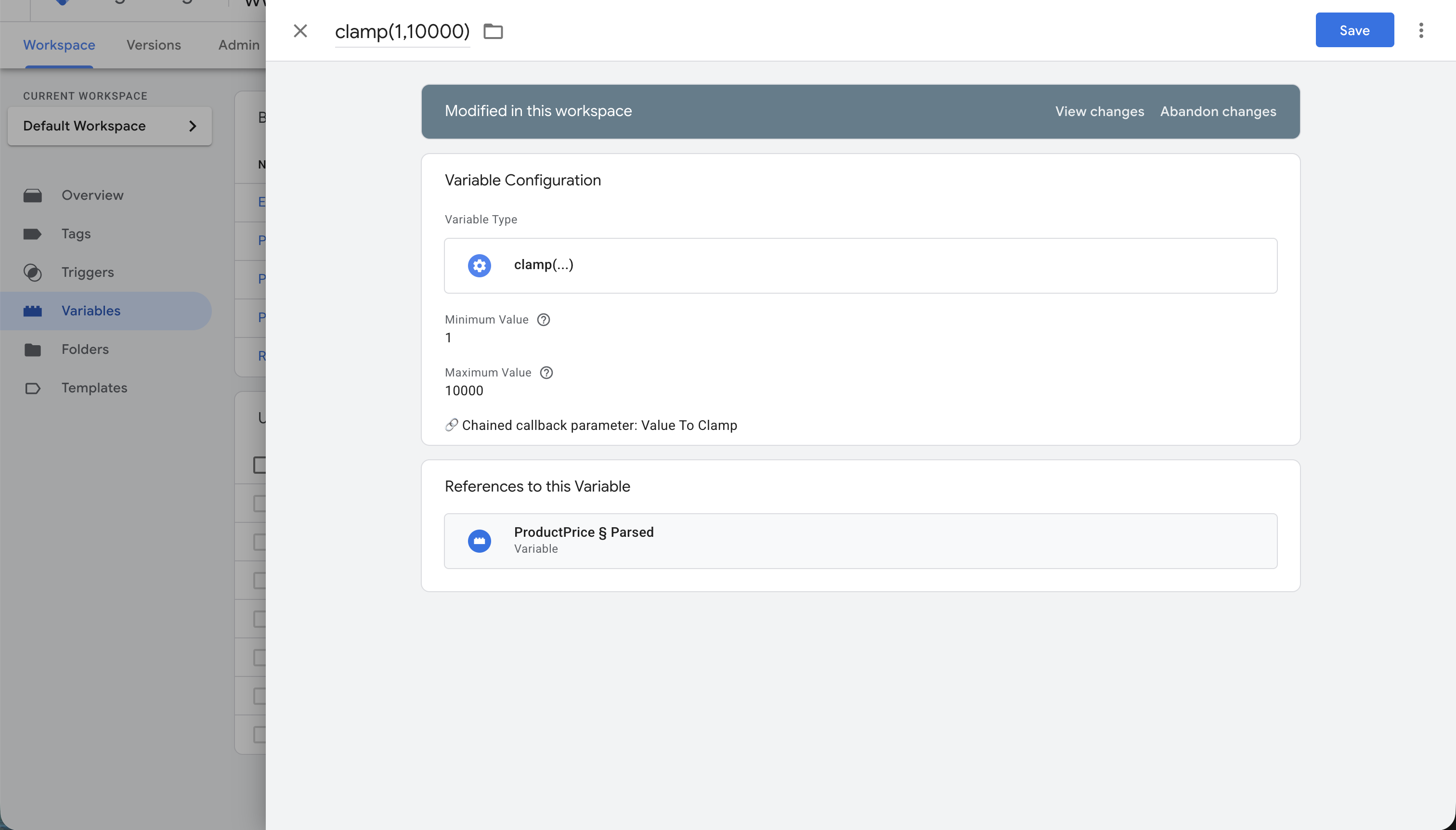
Then, open your ProductPrice § Parsed variable, set it to Apply Mode, and attach the clamp(1, 10000) variable as the result output.
Final Review
Section titled “Final Review”We can now go back into Preview mode and see that the data is much safer and better processed!
- The Item IDs list is now a clean, comma-separated string.
- The product price remains unmodified because it was within the valid
[1, 10000]range, but the variable is now perfectly protected. (For example, if the scraped price was accidentally999999, it would be safely capped at10000).